Serverless Contact Form on S3 using AWS Lambda — Complete Guide
A friendly, deep-dive walkthrough: architecture, code, security, monitoring, common errors & fixes, use cases, FAQs, and best practices. Ready-to-paste code snippets are included with syntax highlighting.
Why choose serverless for contact forms?
Static websites are fast and inexpensive, but forms require backend processing. Serverless lets you add a secure backend without managing servers — you get pay-per-use pricing, automatic scaling, and a small, maintainable codebase. This is ideal for small businesses, portfolios, landing pages, and any static site that needs lead capture.
Benefits at a glance
- Zero server maintenance: AWS manages runtime and auto-scaling.
- Cost-efficient: pay only for API requests and Lambda compute time.
- Scalable: handles spikes in submissions without intervention.
- Secure: HTTPS endpoints, IAM roles, and optional WAF rules.
- Modular: easily extend to save submissions to a DB, send emails, or push to CRMs.
Common use-cases
- Small business contact forms (local shops, agencies, consultants).
- Newsletter signup forms that validate and store email addresses.
- Lead capture for SaaS landing pages.
- Event registration forms without a traditional server.
- Contact points that push to CRMs, Slack, or Google Sheets via webhooks.
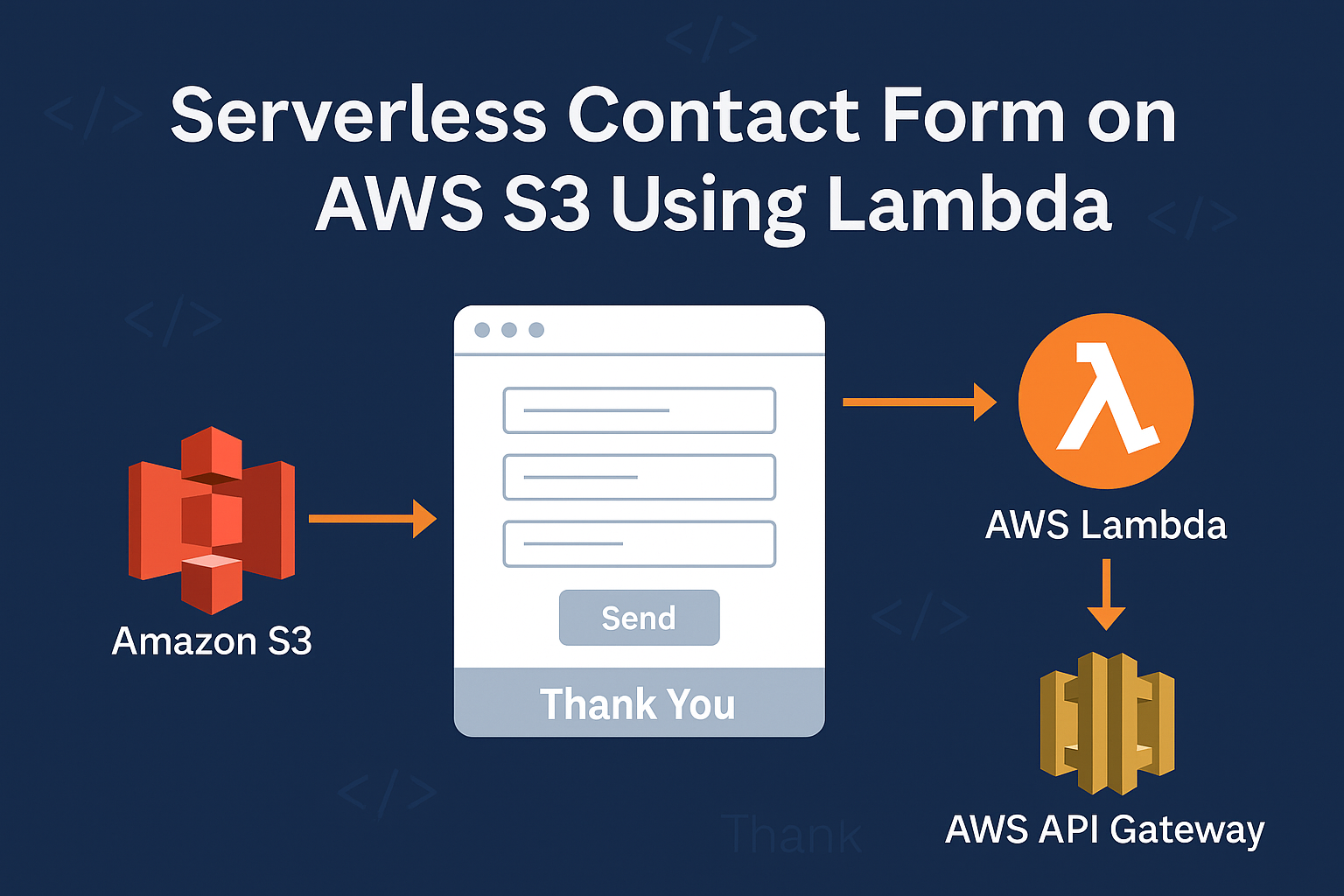
Architecture overview — simple flow
Browser (S3 static site) → API Gateway (HTTPS) → AWS Lambda (processing) → optional: SES (email) / DynamoDB (storage) / Webhook (CRM)
Tip: Use CloudFront in front of S3 for better global performance and HTTPS. Consider using a custom domain for both the website and the API (API Gateway supports custom domains).
Step 1 — Client-side HTML & JS (the form)
Place this markup in your S3-hosted page. Replace YOUR_API_GATEWAY_URL with your API endpoint after creating API Gateway.
<form id="contactForm" class="contact-form">
  <label>Name
    <input type="text" name="name" placeholder="Your name" required />
  </label>
  <label>Email
    <input type="email" name="email" placeholder="you@example.com" required />
  </label>
  <label>Message
    <textarea name="message" placeholder="Tell us about your request" required></textarea>
  </label>
  <button type="submit">Send Message</button>
</form>

<div id="responseMessage" aria-live="polite" style="margin-top:12px;"></div>

<script>
(async function () {
  const form = document.getElementById('contactForm');
  const responseEl = document.getElementById('responseMessage');

  function validateEmail(email) {
    return /^[^\s@]+@[^\s@]+\.[^\s@]+$/.test(email);
  }

  form.addEventListener('submit', async (e) => {
    e.preventDefault();
    responseEl.textContent = 'Sending...';

    const data = {
      name: form.name.value.trim(),
      email: form.email.value.trim(),
      message: form.message.value.trim()
    };

    if (!data.name || !data.email || !data.message) {
      responseEl.textContent = 'Please fill all fields.';
      return;
    }
    if (!validateEmail(data.email)) {
      responseEl.textContent = 'Please enter a valid email.';
      return;
    }

    try {
      const res = await fetch('YOUR_API_GATEWAY_URL', {
        method: 'POST',
        headers: { 'Content-Type': 'application/json' },
        body: JSON.stringify(data)
      });

      if (res.ok) {
        responseEl.textContent = 'Thank you — your message has been sent!';
        form.reset();
      } else {
        const json = await res.json().catch(() => ({}));
        responseEl.textContent = json.message || 'Server error — please try again later.';
      }
    } catch (err) {
      responseEl.textContent = 'Network error — please check your connection.';
      console.error(err);
    }
  });
})();
</script>- Use semantic labels and
aria-livefor accessibility. - Client-side validation improves UX; server-side validation is required for security.
- Use
fetch()withapplication/jsoncontent-type for the API Gateway endpoint.
Step 2 — Lambda function (Node.js example)
This Lambda parses the event body, sanitizes input, optionally writes to DynamoDB, and optionally sends email via SES. Add environment variables for table names and SES addresses.
const AWS = require('aws-sdk');
const SES = new AWS.SES({ region: 'ap-south-1' }); // change region if needed
const DDB = new AWS.DynamoDB.DocumentClient();
const { v4: uuidv4 } = require('uuid');

exports.handler = async (event) => {
  try {
    const body = JSON.parse(event.body || '{}');
    const { name, email, message } = body;

    if (!name || !email || !message) return badRequest('Missing required fields');

    const safe = {
      name: String(name).slice(0, 200),
      email: String(email).slice(0, 200),
      message: String(message).slice(0, 2000),
    };

    // OPTIONAL: write to DynamoDB (non-blocking best-effort)
    if (process.env.DDB_TABLE) {
      try {
        await DDB.put({
          TableName: process.env.DDB_TABLE,
          Item: { id: uuidv4(), ...safe, createdAt: Date.now() }
        }).promise();
      } catch (err) {
        console.warn('DDB write failed:', err);
      }
    }

    // OPTIONAL: send email via SES
    if (process.env.SES_FROM && process.env.SES_TO) {
      const emailParams = {
        Source: process.env.SES_FROM,
        Destination: { ToAddresses: [process.env.SES_TO] },
        Message: {
          Subject: { Data: 'New Contact Form Submission' },
          Body: { Text: { Data: `Name: ${safe.name}\nEmail: ${safe.email}\n\n${safe.message}` } }
        }
      };
      await SES.sendEmail(emailParams).promise();
    }

    return {
      statusCode: 200,
      headers: { 'Access-Control-Allow-Origin': '*' },
      body: JSON.stringify({ message: 'Form received' })
    };

  } catch (err) {
    console.error(err);
    return internalError();
  }

  function badRequest(msg) {
    return { statusCode: 400, headers: { 'Access-Control-Allow-Origin': '*' }, body: JSON.stringify({ message: msg }) };
  }
  function internalError() {
    return { statusCode: 500, headers: { 'Access-Control-Allow-Origin': '*' }, body: JSON.stringify({ message: 'Internal server error' }) };
  }
};
Remember to add environment variables in the Lambda console: DDB_TABLE, SES_FROM, SES_TO.
Important: give the Lambda role least privilege — only the permissions it needs (DynamoDB put, SES send, CloudWatch logs).
Step 3 — API Gateway configuration & CORS
Use either REST API (feature-rich) or HTTP API (cheaper). Create a POST /contact endpoint and integrate it with your Lambda.
- Enable CORS for your origin (or return
Access-Control-Allow-Originin Lambda responses). - Deploy to a stage (e.g.
prod) and copy the invoke URL. - Test with curl or Postman before connecting the site.
# Example: test endpoint with curl
curl -X POST "https://abcdefgh.execute-api.ap-south-1.amazonaws.com/prod/contact" \
  -H "Content-Type: application/json" \
  -d '{"name":"Test","email":"test@example.com","message":"hello"}'
Optional: Amazon SES (send email)
- Verify your domain or specific “From” address in SES (SES console → Verified Identities).
- If your SES account is in the sandbox, request production access to send to unverified recipients.
- Grant
ses:SendEmailpermission to the Lambda role.
// SES example (already included in Lambda above)
// Ensure SES_FROM and SES_TO env vars are set, and SES_FROM is verified in SES.
Optional: Store submissions in DynamoDB
DynamoDB provides durable storage for form entries. Use small items (no huge text blobs) and TTL if you want to expire older entries.
{
  "TableName": "ContactFormSubmissions",
  "KeySchema": [{ "AttributeName": "id", "KeyType": "HASH" }],
  "AttributeDefinitions": [{ "AttributeName": "id", "AttributeType": "S" }],
  "BillingMode": "PAY_PER_REQUEST"
}
Use On-Demand billing for low-traffic sites to avoid capacity planning.
Security, IAM & best practices
- Least privilege: only allow the Lambda role the actions it needs (DynamoDB PutItem, SES SendEmail, Logs access).
- Input validation: always validate and sanitize server-side. Truncate or reject unexpected fields and lengths.
- HTTPS only: API Gateway provides TLS; never accept form posts over plain HTTP.
- Anti-spam: add reCAPTCHA v3/v2, a honeypot field, or use AWS WAF to block suspicious traffic.
- Secrets management: store API keys or third-party webhook secrets in AWS Secrets Manager or as encrypted environment variables (use KMS).
{
  "Version": "2012-10-17",
  "Statement": [
    {
      "Effect": "Allow",
      "Action": ["dynamodb:PutItem"],
      "Resource": ["arn:aws:dynamodb:ap-south-1:123456789012:table/ContactFormSubmissions"]
    },
    {
      "Effect": "Allow",
      "Action": ["ses:SendEmail", "ses:SendRawEmail"],
      "Resource": ["*"]
    },
    {
      "Effect": "Allow",
      "Action": ["logs:CreateLogGroup","logs:CreateLogStream","logs:PutLogEvents"],
      "Resource": ["arn:aws:logs:*:*:*"]
    }
  ]
}
Replace account and region values with your actual ARNs. Narrow SES permissions by resource or use condition keys where possible.
Monitoring & Observability
- CloudWatch Logs: inspect invocation logs, error stack traces and custom console logs.
- CloudWatch Metrics: monitor errors, invocations, duration and throttles.
- Alarms: set alarms for error rates or spikes in latency and notify via SNS.
- SES metrics: monitor bounces, complaints and delivery rates.
# Tail logs (AWS CLI v2)
aws logs tail /aws/lambda/contactFormHandler --follow --region ap-south-1
Common errors & how to fix them
1. CORS errors in browser
Symptom: Browser console shows CORS policy blocked requests or OPTIONS preflight failed.
Fix: Enable CORS in API Gateway for your POST method, and ensure your Lambda responses include Access-Control-Allow-Origin (prefer the specific domain instead of * in production). Also, handle OPTIONS preflight responses if you use custom authorizers.
2. SES: emails not delivered (sandbox)
Symptom: SES rejects send or email never arrives.
Fix: Verify your “From” email or domain in SES. If your account is in the SES sandbox, request production access or verify destination addresses for testing.
3. API Gateway 502 / 500 responses
Symptom: API returns 502 or 500 even though Lambda executed.
Fix: Check CloudWatch logs for unhandled exceptions and ensure Lambda returns a JSON stringified body, and proper numeric statusCode. For REST proxy integrations, return headers as expected.
4. Permissions: API Gateway cannot invoke Lambda
Symptom: API Gateway returns 403 or invocation fails.
Fix: Grant API Gateway invoke permission with aws lambda add-permission, or let the console create the permission during integration.
aws lambda add-permission \
  --function-name contactFormHandler \
  --statement-id apigw-invoke \
  --action lambda:InvokeFunction \
  --principal apigateway.amazonaws.com \
  --source-arn arn:aws:execute-api:ap-south-1:123456789012:abcdefgh/*/POST/contact
5. Invalid JSON / parse errors
Symptom: Lambda logs show JSON.parse errors.
Fix: Ensure the client sends JSON with Content-Type: application/json and uses JSON.stringify() for the request body. In Lambda, guard against empty bodies using event.body || '{}'.
Costs & capacity planning
- Lambda: free tier 1M requests/month; thereafter cost depends on memory and execution time.
- API Gateway: per-request charges; HTTP APIs are cheaper than REST APIs.
- DynamoDB: writes and storage; use on-demand billing for unpredictable low-volume workloads.
- SES: low cost per email + data transfer; free tier includes SES usage for EC2 but not for Lambda/API Gateway hosted sites.
For most small sites handling a few thousand submissions a month, monthly cost is typically a few dollars. Monitor CloudWatch and billing to detect any spikes (malicious traffic or misconfigured loops can increase cost).
FAQ — Short answers
Q: Can I use reCAPTCHA?
Yes. Add the client-side reCAPTCHA token to the form and validate it server-side (Lambda) by calling Google’s verification API. Store your Google secret safely (Secrets Manager or encrypted env var).
Q: Can I host the API under my custom domain?
Yes. API Gateway supports custom domains and TLS. Map a base path to your stage and update DNS with a CNAME or ALIAS record.
Q: How to test locally?
Use Postman or curl to POST JSON to your API endpoint. You can also use SAM or the Serverless Framework to run Lambda locally during development.
Q: Should I keep form logs?
Keep CloudWatch logs for at least a few days for debugging. Don’t log sensitive data (PII) in plaintext. Consider masking or hashing sensitive fields.
Deployment & automation tips
- Infrastructure as code: use Terraform, AWS CDK or CloudFormation for reproducible environments.
- CI/CD: deploy Lambda with zipped artifacts from a pipeline (GitHub Actions, CodePipeline) and automatically deploy API Gateway stages.
- Secrets & env: store secrets in Secrets Manager and reference them securely, or use encrypted environment variables.
- Versioning: enable Lambda function versions and use aliases for gradual rollouts.
Accessibility & UX best practices
- Use properly associated
<label>elements and keyboard-focusable controls. - Provide client-side feedback (loading states, success/failure messages) and server-side validation messages.
- Make the submit button obvious, but avoid intrusive modals; prefer inline messages or unobtrusive toasts.
Final checklist before going live
- Replace
YOUR_API_GATEWAY_URLin your form JS with the real endpoint. - Verify SES From email or domain.
- Ensure Lambda role has least privilege permissions required.
- Enable CORS correctly for your domain.
- Test end-to-end (form → API → Lambda → SES/DynamoDB).
- Monitor CloudWatch logs and billing for the first 48 hours.